DynamicText Shape
Dynamic Text is a powerful feature that enables the generation and real-time updating of text during the marking process. With Dynamic Text, you have the flexibility to generate and modify text content directly at the marking controller, eliminating the need for a computer.
This capability is particularly valuable for applications that require on-the-fly text generation and updates. For example, you can use Dynamic Text to mark serial numbers, apply date/time stamps, or incorporate dynamic information from external sources, such as data servers or other process schedules.
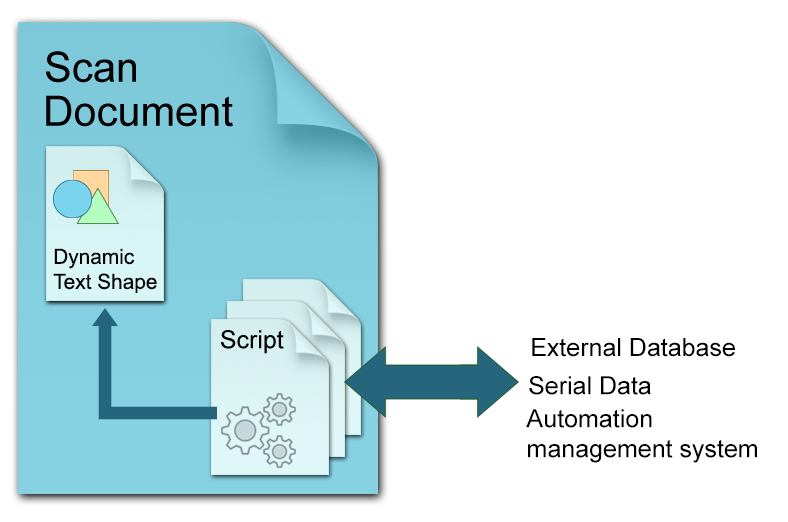
To change the text dynamically, first, create a Dynamic text object and assign a variable name. This variable will serve as a reference for updating the text content of the Dynamic Text shape during the marking process, utilizing the capabilities of the ScanScript scripting engine.
After each marking cycle, the script can fetch the next required text and assign it to the dynamic text shape, which will be then processed and prepared for marking by the marking controller in real time.
Dynamic text is widely used in serial number marking applications.
Properties
| Angle | Gets or Sets the angle of the dynamic text shape. |
| CharacterGap | Gets or sets the gap between two characters. |
| DotDurationInMicroseconds | Gets or sets the length of time (in microseconds) the laser will stay on for a dot in special dotted fonts |
| EvaluateVariableTags | |
| FontName | Gets or sets the font to be used for this dynamic text shape. |
| Height | Gets or set the text height of this dynamic text shape |
| Location | Gets or Sets the location of the text shape. |
| MarkingOrder | Gets or sets a value indicating how the dynamic text shape should be marked |
| ReferencePosition | Gets or sets the reference position used to transform this dynamic text shape. |
| ScaleX | Gets or sets the percentage scaling in the X axis direction. |
| ScaleY | Gets or sets the percentage scaling in theY axis direction. |
| Text | Gets or sets the text associated with this shape |
| TransformationMatrix | Gets or sets the transform matrix used to transform the text shape. |
| VariableName | Gets or sets the variable that will be used to update this dynamic text shape. |
Methods
| AddHatchPattern | Adds a hatch pattern to the shape |
| AddHatchPatternHelixFilling | Adds a helix type pattern to the shape |
| AddHatchPatternLine | Adds a Line type pattern to the shape |
| AddHatchPatternOffsetFilling | Adds an Offset filling type pattern to the shape |
| AddHatchPatternOffsetInOut | Adds an Offset In Out filling type pattern to the shape |
| SetLineHatchPattern | |
| Flip | Filp the text according to the selected flipping direction. |
In the following simple example, we will demonstrate how to use dynamic text and ScanScript to update text in real-time.
First, create a dynamic text object and align it to the desired position for marking. In this example, we have two dynamic text objects: one for marking the manufactured date and the other for marking the expiry date.
DynamicTextShape dynamicText1 = new DynamicTextShape();
dynamicText1.Height = 5;
dynamicText1.Location = new Point3D(0, 5, 0);
dynamicText1.VariableName = "dt_mfgDate";
dynamicText1.Text = "Text1";
dynamicText1.EvaluateVariableTags = true;
dynamicText1.FontName = "Arial";
dynamicText1.CharacterGap = 0;
dynamicText1.ScaleX = 1;
dynamicText1.ScaleY = 1;
dynamicText1.Angle = 0;
vectorImage.AddDynamicText(dynamicText1);

DynamicTextShape dynamicText2 = new DynamicTextShape();
dynamicText2.Height = 5;
dynamicText2.Location = new Point3D(0, 10, 0);
dynamicText2.VariableName = "dt_expDate";
dynamicText2.Text = "Text2";
dynamicText2.EvaluateVariableTags = true;
dynamicText2.FontName = "Arial";
dynamicText2.CharacterGap = 0;
dynamicText2.ScaleX = 1;
dynamicText2.ScaleY = 1;
dynamicText2.Angle = 0;
vectorImage.AddDynamicText(dynamicText2);
Note that each dynamic text object has a unique variable name assigned to it. This variable name will be utilized by the ScanScript to update the text in real-time during the marking process.
For this example, we will incorporate a user input at the marking controller to trigger the text update and proceed with the next marking operation.
The following script will wait for the auxiliary user input 1 (digital IO pin 1) to be asserted. Once the input is detected, the script will assign the current dates for the manufactured date and the expiry date in real-time. It's important to note that this operation is performed within the marking controller itself, without the need for intervention from the host computer.
while (true) do
mfgDate = DateTime()
expDate = DateTime()
expDate.AddMonths(6)
Report(""Press the Button"")
timeout = 1000000000
IO.WaitForIO(Pin.Din.UserIn1, Trigger.Level.High, timeout, 1000)
dt_mfgDate.Text = ""MFG Date: "" .. mfgDate.ToString(""[M]/[YY][ss]"")
dt_expDate.Text = ""EXP Date: "" .. expDate.ToString(""[M]/[YY][ss]"")
ScanAll()
Laser.WaitForEnd()
Report(""Mark Completed"")
end";
scanDocument.Scripts.Add(new ScanningScriptChunk("SC_CL_DYNTXT", SC_Dyntxt));
It's important to note that when using dynamic text in the marking process, it is necessary to embed the necessary font characters directly into the job. This is because the marking controller does not store any font files that were used in the design computer. By embedding the font characters, the controller will have access to the required fonts during the marking process, ensuring accurate rendering of the text.
The complete example follows,
DistanceUnit drillUnits = DistanceUnit.Millimeters;
scanDocument = scanDeviceManager.CreateScanDocument(GetselectedDeviceUniqueName(), DistanceUnit.Millimeters, false);

if (scanDocument != null)
{
    VectorImage vectorImage = scanDocument.CreateVectorImage("image1", drillUnits);

    vectorImage.SetMarkSpeed(1000);
    vectorImage.SetJumpSpeed(2000);
    vectorImage.SetJumpDelay(100);
    vectorImage.SetMarkDelay(100);

    //Set Laser Delays
    vectorImage.SetLaserOnDelay(10);
    vectorImage.SetLaserOffDelay(10);

    DynamicTextShape dynamicText1 = new DynamicTextShape();
    dynamicText1.Height = 5;
    dynamicText1.Location = new Point3D(0, 5, 0);
    dynamicText1.VariableName = "dt_mfgDate";
    dynamicText1.Text = "Text1";
    dynamicText1.EvaluateVariableTags = true;
    dynamicText1.FontName = "Arial";
    dynamicText1.CharacterGap = 0;
    dynamicText1.ScaleX = 1;
    dynamicText1.ScaleY = 1;
    dynamicText1.Angle = 0;
    vectorImage.AddDynamicText(dynamicText1);

    DynamicTextShape dynamicText2 = new DynamicTextShape();
    dynamicText2.Height = 5;
    dynamicText2.Location = new Point3D(0, 10, 0);
    dynamicText2.VariableName = "dt_expDate";
    dynamicText2.Text = "Text2";
    dynamicText2.EvaluateVariableTags = true;
    dynamicText2.FontName = "Arial";
    dynamicText2.CharacterGap = 0;
    dynamicText2.ScaleX = 1;
    dynamicText2.ScaleY = 1;
    dynamicText2.Angle = 0;
    vectorImage.AddDynamicText(dynamicText2);

    // Embed Font
    Collection<UnicodeRange> unicodeRanges = new Collection<UnicodeRange>();
    UnicodeRange unicodeRange = new UnicodeRange();
    // Characters from 0 to 255 or basically extended ASCII range is embedded
    unicodeRange.StartingCharacter = Convert.ToChar(0x00);
    unicodeRange.EndingCharacter = Convert.ToChar(0xff);
    unicodeRanges.Add(unicodeRange);
    scanDocument.EmbedFont("Arial", FontStyle.Regular, unicodeRanges);


    string SC_Dyntxt = @"while (true) do
    mfgDate = DateTime()
    expDate = DateTime()
    expDate.AddMonths(6)
    Report(""Press the Button"")
    timeout = 1000000000
    IO.WaitForIO(Pin.Din.UserIn1, Trigger.Level.High, timeout, 1000)
    dt_mfgDate.Text = ""MFG Date: "" .. mfgDate.ToString(""[M]/[YY] [ss]"")
    dt_expDate.Text = ""EXP Date: "" .. expDate.ToString(""[M]/[YY] [ss]"")
    ScanAll()
    Laser.WaitForEnd()
    Report(""Mark Completed"")
    end";
    scanDocument.Scripts.Add(new ScanningScriptChunk("SC_CL_DYNTXT", SC_Dyntxt));

    try
    {
        scanDocument.StartScanning();
    }
    catch
    {

    }
}